Saturday, September 29, 2012

Self-defined linestyle under gnuplot postscript terminal

In post http://gnuplot-surprising.blogspot.com/2012/07/self-defined-linestyle-under-gnuplot.html we have talked about self-defined linestyle under gnuplot svg terminal. Here we show how to realize the same effect under postscript terminal.

Assume you have plotted a graph using the following script.

set term post eps color enhanced
set output "self-defined_linestyle.eps"

plot sin(x) w l linestyle 1

set output

Open the outputed ps (or eps) file with any text editor, and find codes as the following:

% Default Line colors
/LCw {1 1 1} def
/LCb {0 0 0} def
/LCa {0 0 0} def
/LC0 {1 0 0} def
/LC1 {0 1 0} def
/LC2 {0 0 1} def
/LC3 {1 0 1} def
/LC4 {0 1 1} def
/LC5 {1 1 0} def
/LC6 {0 0 0} def
/LC7 {1 0.3 0} def
/LC8 {0.5 0.5 0.5} def
% Default Line Types
/LTw {PL [] 1 setgray} def
/LTb {BL [] LCb DL} def
/LTa {AL [1 udl mul 2 udl mul] 0 setdash LCa setrgbcolor} def
/LT0 {PL [8 dl1 1 dl2 1 dl1 1 dl2] LC0 DL} def
/LT1 {PL [4 dl1 2 dl2] LC1 DL} def
/LT2 {PL [2 dl1 3 dl2] LC2 DL} def
/LT3 {PL [1 dl1 1.5 dl2] LC3 DL} def
/LT4 {PL [6 dl1 2 dl2 1 dl1 2 dl2] LC4 DL} def
/LT5 {PL [3 dl1 3 dl2 1 dl1 3 dl2] LC5 DL} def
/LT6 {PL [2 dl1 2 dl2 2 dl1 6 dl2] LC6 DL} def
/LT7 {PL [1 dl1 2 dl2 6 dl1 2 dl2 1 dl1 2 dl2] LC7 DL} def
/LT8 {PL [2 dl1 2 dl2 2 dl1 2 dl2 2 dl1 2 dl2 2 dl1 4 dl2] LC8 DL} def

In the upper codes "/LC? {# # #} def" defines the line color, and "/LT? {Pl [#1 dl1 #2 dl2]LC?} def" defines the line type. "#1 dl1 #2 dl2" means the line is a dash line with #1 legth colored and #2 length blank.

Modify these codes as what you like, and save the file. For example, I use "/LT0 {PL [8 dl1 4 dl2 1 dl1 4 dl2 1 dl1 8 dl2] LC0 DL} def" to repalce the original "/LT0 {PL [] LC0 DL} def".

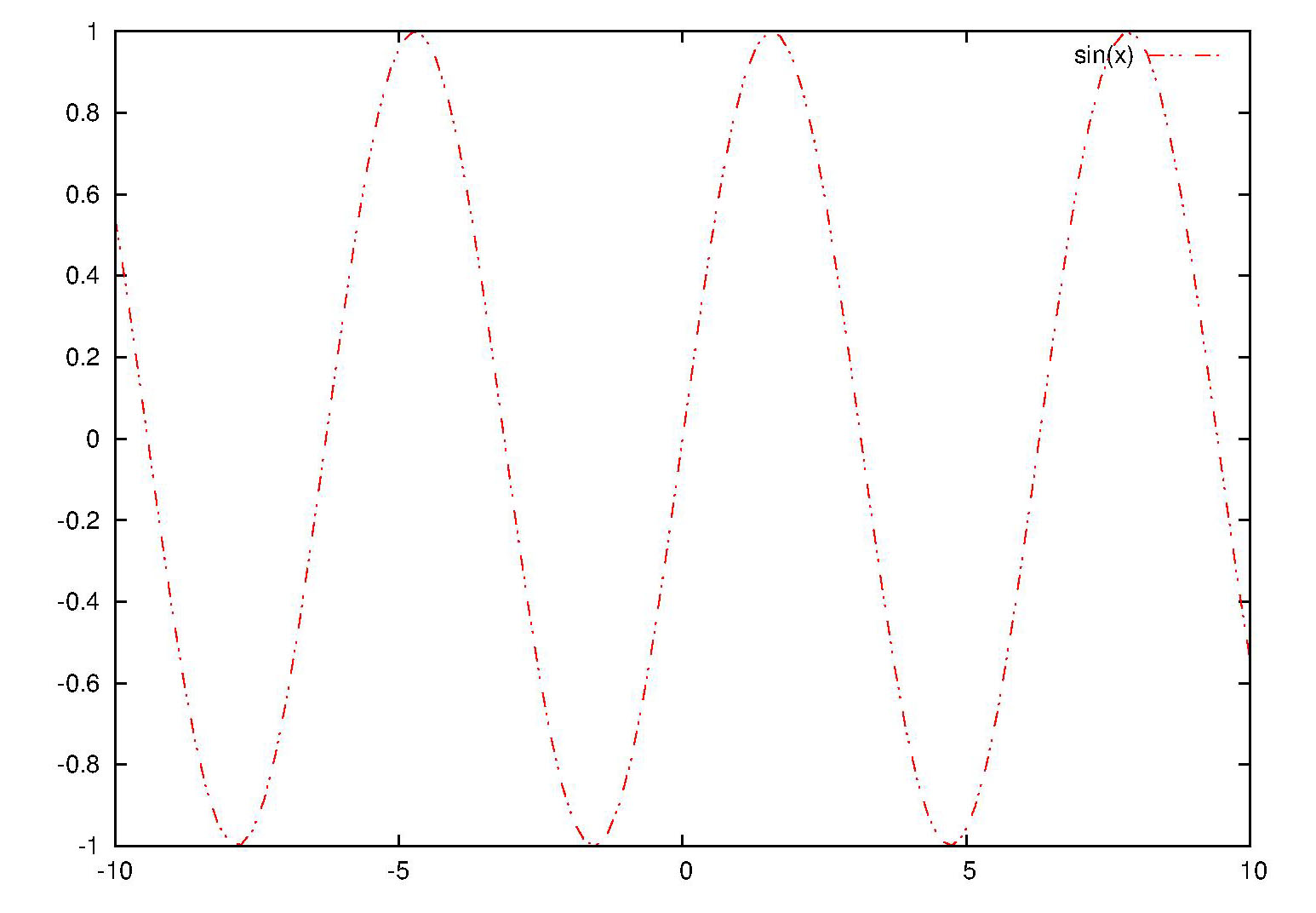
At last, open the modified postscript file with gsview (or any other postscript viewer), and you will find the linestyle have been changed. The following is the original and modifed graph respectively.
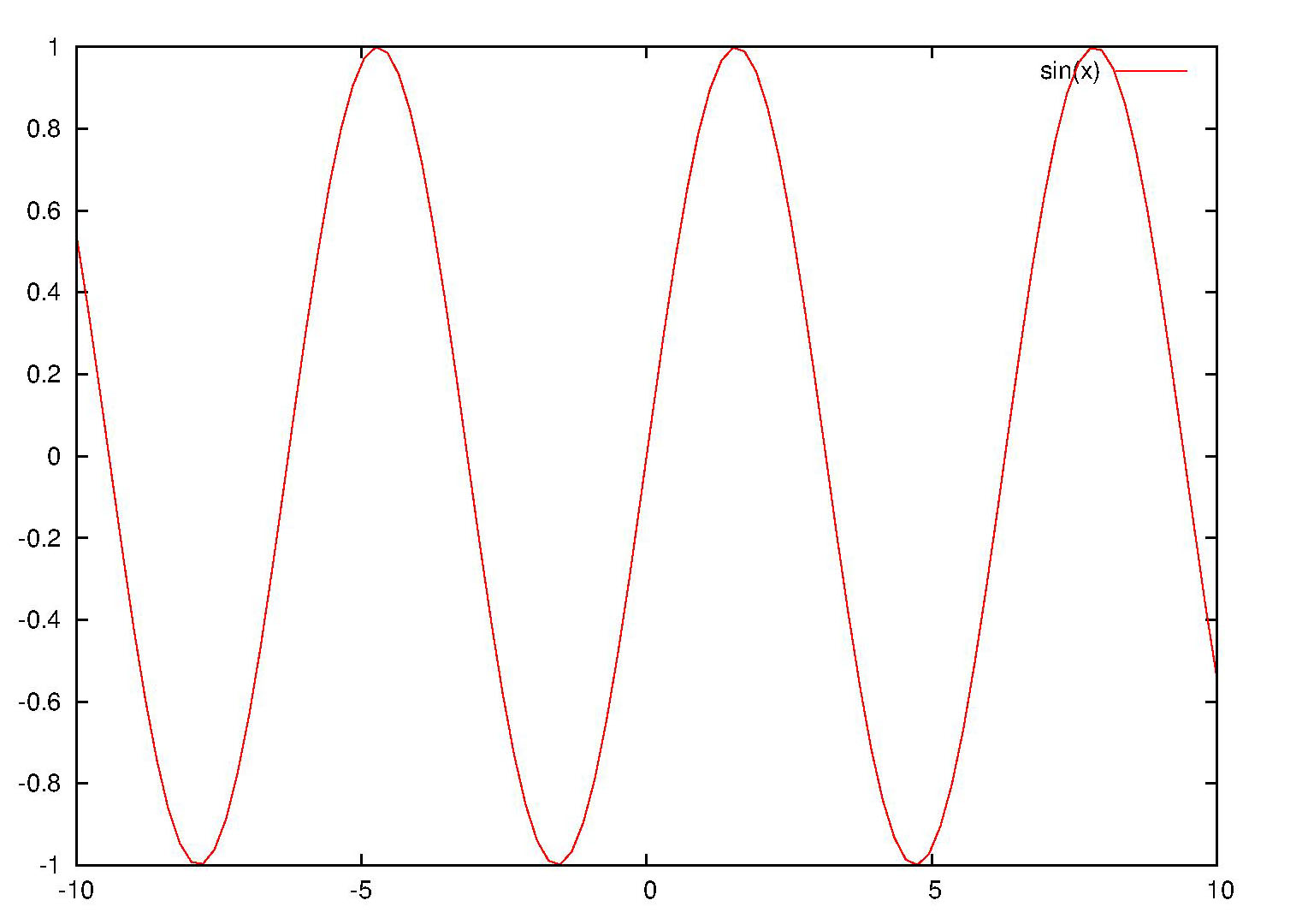
Fig.1 Original outputted picture
Fig.2 Modified outputted picture


Friday, August 24, 2012

Converting from a hex-string color to its rgbvalue

There are several ways to specify color when one plots using gnuplot.Among them hex-string (like "#0000ff") and rgbvalue (like "256") specification is very important. In this post we will talk about converting from a hex-string color to its rgbvalue (the inversion will be talked in another post).

reset
#pick the red color hex string out
red(colorstring)= colorstring[2:3]
#pick the green color hex string out
green(colorstring)=colorstring[4:5]
#pick the blue color hex string out
blue(colorstring)=colorstring[6:7]
#convert a hex string to its dec format
hex2dec(hex)=gprintf("%0.f",int('0X'.hex))
#calculate the rgb value from the r,g,b weight
rgb(r,g,b) = 65536*int(r)+256*int(g)+int(b)
#convert the hex color string to its rgb value.
hex2rgbvalue(color)=rgb(\
                        hex2dec(red(color)),\
                        hex2dec(green(color)),\
                        hex2dec(blue(color))\
                        ) 
set term png
set output "hex_string2rgbvalue.png"
plot 'color.dat' u 1:2:(hex2rgbvalue(stringcolumn(3)))\
              w lp pt 7 ps 3 lc rgb variable notitle
set output

File 'color.dat' has content like the following:
0 1 #ff0000
1 2 #00ff00
2 3 #0000ff
3 4 #ff00ff
4 5 #ffff00
5 6 #00ffff
0 6 #00ffff
1 5 #ffff00
2 4 #ff00ff
3 3 #0000ff
4 2 #00ff00
5 1 #ff0000

The output file 'hex_string2rgbvalue.png' looks like this:
Fig.1 Converting from a hex-string color to its rgb-value

Saturday, July 7, 2012

Self-defined linestyle under gnuplot svg terminal

Gnuplot have defined a series of line styles. But maybe you still have not find the one which is just appropriate for you. For example,when you want to use a dash-dot-dot line, you find there is not such a linestyle.

When you are using svg teminal (self-defined linestyle under postscript terminal will be talked in another post) this problem can solved easily. Fisrt, plot your file with solid line.

set term svg
set output "sin.svg"
plot sin(x) with line
set output

After that, open the svg file with a text-editor, and find codes like the following:

<g id="gnuplot_plot_1" >
<title>gnuplot_plot_1</title>
<g style=" fill:none; color:red; 
  stroke:currentColor; stroke-width:1.00; 
  stroke-linecap:butt; stroke-linejoin:miter">

Then change it to

<g id="gnuplot_plot_1" >
<title>gnuplot_plot_1</title>
<g style="stroke-dasharray: 7,2,2,2,2,2; 
  fill:none; color:red; stroke:currentColor; 
  stroke-width:1.00; stroke-linecap:butt; 
  stroke-linejoin:miter">

This time open your svg file, and you find the line sytle has changed. The follwing picture is a screen capture of "sin.svg".

Fig.1 Self-defined linestyle under gnuplot svg terminal

To further understand this post, you may google "stroke-dasharray + svg".

Monday, June 4, 2012

Plot an interactive svg graph using gnuplot

In this post an example of plotting an interactive svg graph using gnuplot is talked.

First, run the following gnuplot plotting script.

set term svg mouse jsdir "./js"  
set output "sincos.svg"
plot sin(x) w l lc rgb"#ff0000", cos(x) w l lc rgb"#00ff00"
set output

And a file called "sincos.svg" is plotted. As we specified in the script that the javascript file is in directory "./js", "gnuplot-dir/share/js" have to be copied to the current directory (windows operating system, and if you use linux maybe the directory should be /usr/local/share/gnuplot/gnuplot-version/js). This time open the file, and you can find when you click the graph, the coordinate of the current point will be displayed. And when you click the legend, the cooresponding line will be invisible, and click it again, the line will visible.

The jsdir can also be a url location. And this is is usually appropriate if you are embedding the svg into a web page. For example, command --- set term svg mouse jsdir "http://gnuplot.sourceforge.net/demo_svg_4.6/" can be used.

set term svg mouse jsdir "http://gnuplot.sourceforge.net/demo_svg_4.6/"
set output "sincos.svg"
plot sin(x) w l lc rgb"#ff0000", cos(x) w l lc rgb"#00ff00"
set output

Saturday, May 19, 2012

How to pick out the maximum and minimum points when plotting with gnuplot?

Picking out the maximum and minimum points from a data file may be useful when you want to make some explanation to your graph. It is known that GPVAL_Y_MAX (GPVAL_Y_MIN) is the maximum (minimum) value. But what is the corresponding X coordinate?

With Gnuplot 4.6 the both the x and y coordinate of maximum and minimum points can be find out easily. The method is using new command "stats". This command is used for statistic. When it is run, some statistical results will be gotten. If your data file contains two column of data, (STATS_pos_max_y, STATS_max_y) will be the coordinate of the maximum point and (STATS_pos_min_y, STATS_min_y) will be the coordinate of the minimum point.

For example, we have a data file named "data.dat" like this

0.1     0.289010715
0.2     0.050630492
0.3     0.721247895
0.4     0.284271151
0.5     0.505051253
0.6     0.101819025
0.7     0.008466133
0.8     0.36249047
0.9     0.487576233
1.0     0.595090343
1.1     0.865255938
1.2     0.696628854
1.3     0.505899456
1.4     0.338131983
1.5     0.108034045

Run a gnuplot script as follows

reset
set term png
set output "max_min.png"
stats "data.dat" u 1:2 nooutput
set xrange [STATS_min_x:STATS_max_x]
set label 1 "Maximun" at STATS_pos_max_y, STATS_max_y offset 1,-0.5
set label 2 "Minimun" at STATS_pos_min_y, STATS_min_y offset 1,0.5
plot "data.dat" w p pt 3 lc rgb"#ff0000" notitle, \
     STATS_min_y w l lc rgb"#00ffff" notitle, \
     STATS_max_y w l lc rgb"#00ffff" notitle
set output

And you will get a graph like the following one.
Picking out the maximum and minimum points when plotting using gnuplot
Creative Commons License
Except as otherwise noted, the content of this page is licensed under a Creative Commons Attribution-NonCommercial-NoDerivs 3.0 Unported License.